During the Ask a Developer session at the Blender Conference last weekend, there was a request for easy debugging of Python code. Fortunately, with PyCharm or Eclipse/PyDev, this is quite easy. Personally I use PyCharm, but the process should be pretty similar for Eclipse/PyDev. Besides Blender and your IDE, you need more two ingredients:
- The egg file from your IDE. For PyCharm, this file is called “pycharm-debug-py3k.egg” and you can find it in PyCharm’s “debug-eggs” directory. Make sure you get the one for Python 3. There is no need to do anything with the file, just note down its path. On my machine, it is “/home/sybren/pycharm/debug-eggs/pycharm-debug-py3k.egg”, but yours may be in “C:\Program Files\…”
- My addon remote_debugger.py from GitHub.
Update 1-Nov-2015: You need the Professional version of PyCharm for this to work. Fortunately, if you can show that you actively participate in an Open Source project, you can get a Pro license for free.
Step 1: Install and configure the addon
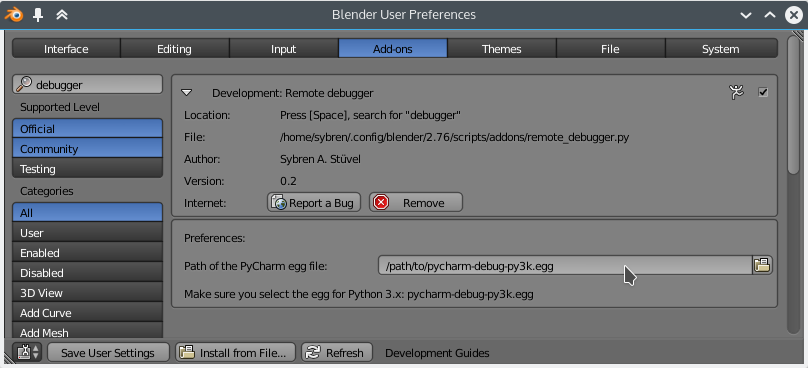
Once you’ve downloaded remote_debugger.py, install it in Blender. Open the User Preferences window, and hit the “Install from file…” button at the bottom.
Configuring the addon
In the addon preferences, point Blender to your “pycharm-debug-py3k.egg” file. On my Linux machine it’s at /home/sybren/pycharm/debug-eggs/pycharm-debug-py3k.egg. Since you’re a developer, I’ll assume that you know where you installed your IDE.
Step 2: Create the debug server configuration
PyCharm debugger configuration
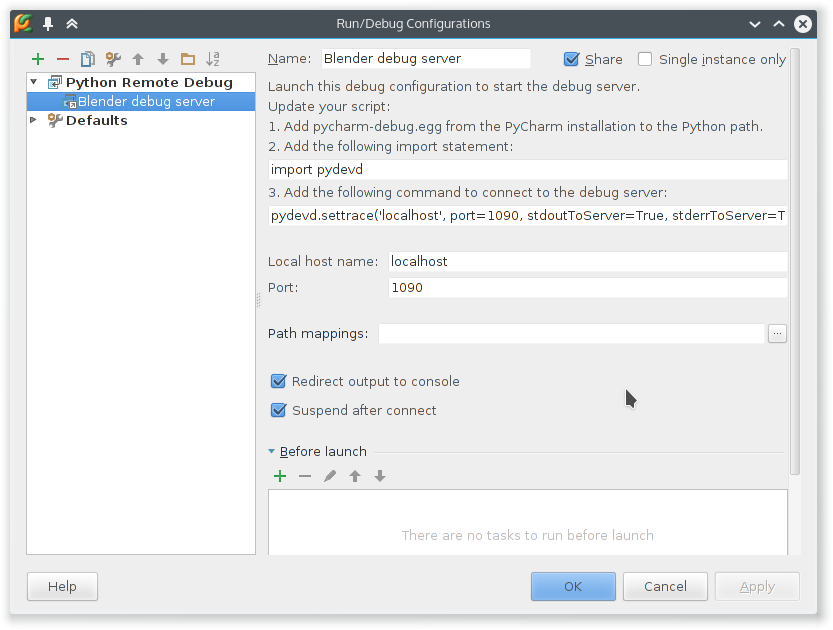
In PyCharm, create a new Python Remote Debugger configuration: Run → Edit Configurations… → + → Python Remote Debug.
Make sure Local Host Name is set to “localhost” and Port to “1090”. You can use another port number if you want, but be sure to update the addon source code to reflect this.
Step 3: Start the debug server

Starting the debug server in PyCharm
Start the debug server from the Run/Debug dropdown. Don’t forget to click the little bug to actually start it.
Step 4: Connect Blender
Connecting the debugger from Blender
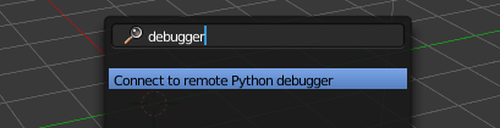
In Blender, hit space in the 3D viewport and search for “debugger”. Choose “Connect to remote Python debugger”. Once you do this, you will see that Blender freezes up. This is expected behaviour. Switch to PyCharm, and you’ll see that it has paused the execution of the addon just under the “pydevd.settrace(…)” call. Press the green “play” button (or press F9) to un-freeze Blender.
Step 5: Debug!
Now that everything is connected, you can debug your code like you’re used to. Set breakpoints, step through code, inspect variables, etc.
Some final words
The order in which things are set up are quite important. You only need to do steps 1-2 once, which is nice. Be sure to do steps 3 and 4 in that order, as it makes things a bit more predictable and works well.
Here are some additional links that may help with the remote debugging. You can always try to contact me (Sybren) on IRC in #blenderpython if you have questions.


Hi. First of all, thank you for this add-on! ?
I just wanted to give you notice of Blender 2.93.1 seemingly having broken its preferences panel: it shows the “Preferences” and “Make sure…” texts, but it lacks the filepath input fields.
The add-on works on Blender 2.92, though (I’m testing it on a try-out version of PyCharm Pro, as I seem to feel more comfortable there than on VSC). This is on an old Mac with macOS 10.14.6 Mojave, just in case that could be a factor.
I can’t configure the addon. The log says it’s installed, and the file is in the addons folder. But it does not show up in the addons list in Blender…
Same
Same. Complete rubbish addon.
I cannot install the addon in blender. I get the following message in the console:
fake_module: addon missing ‘bl_info’ gives bad performance!: ‘C:\\Users\\hez2hi\
\AppData\\Roaming\\Blender Foundation\\Blender\\2.79\\scripts\\addons\\remote_de
bugger.py’
I always get
[quote]
Error running bleneder remote server: Failed to find free socket port
[/quote]
even I change the port
Me too… Did you find a solution to the problem?
I’m having the same issue
I dont have a pycharm-debug.egg file
You need PyCharm 5 Professional, it has the debug-eggs directory and the py3k.egg file in it (don’t use the other one, you need the Python 3 one).
Anyway, anyone got an idea how to get some auto completion?
This is an article how to get auto-completion running:
https://b3d.interplanety.ru/en/using-external-ide-pycharm-for-writing-blender-scripts/
It uses this github project:
https://github.com/mutantbob/pycharm-blender
Great addon! Thanks!
I’m not sure why, but every time after a successful debug, if I try to run it again, Blender doesn’t freeze, and pycharm doesn’t catch it. It works only after I restart Blender.
I think I solved the problem.
Just add
pydevd.stoptrace()
between
import pydevd
and
pydevd.settrace(……
Does this trick works with Pycharm community?
I have read that only Pycharm (full) has the ability to debug remote.
I am so glad that you did not forget about this! Thank you very much for taking the time to explain the process, I am going to try it out and start hacking in python.
It was great to see you all at the conference.
If you’re on Windows, PTVS works brilliantly too. No need for any fiddling about, just hit attach and select Blender! :)
With a bit of fiddling you can debug Python and C/C++ at the same time, with the stack switching from one to the other as appropriate. Super useful if you’re working in both areas.
In order to prevent spam, comments are closed 7 days after the post is published. Feel free to continue the conversation on the forums.